The Process and Machine Options tab enables you to provide routing-specific inputs, such as selecting a specific machine or process setup options for processes included in the routing.

-
The top section of this tab displays the selected routing in tree form, like the display in the Manufacturing Process pane. The tree displays processes chosen for the routing, and under each process specific operations that are used to manufacture specific GCDs.
-
If you have not yet costed the current component, this tab displays the message “An initial cost must exist before you can override process-specific options.” Ensure that your costing inputs are correct on the other two tabs, and then click the Cost Now button and return to this tab.
-
Depending on what you select in the process tree, the Set Process Options or Machine... button displays a window enabling you to specify a particular machine, or (if available) optional settings that can be modified for that machine, or both. If nothing can be user-modified for the selection, the Set Process Options or Machine... button remains disabled.
-
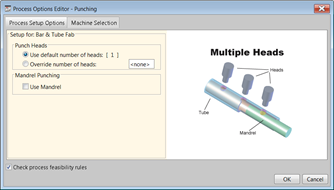
Here is the window that comes up when you select the Punching process for a Bar & Tube component.

-
The Process Setup Options tab displays any optional features that the currently selected machine allows you to configure. By default, aPriori checks feasibility rules to determine whether the current process should be costed with the current settings. If you wish to override this setting and ignore feasibility rules, unselect Check process feasibility rules.
-
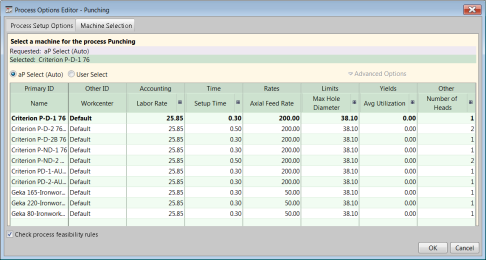
You can select a different machine than the one that aPriori automatically selects by selecting the Machine Selection tab.

-
Selecting Advanced Options displays choices regarding whether to check the feasibility of that machine, and how to continue if aPriori determines that the machine cannot successfully handle the component. (The machine feasibility rules apply to the selected machine, while the feasibility checkbox at the bottom of the window applies to process feasibility rules.)
It is important to note that the Machine Selection and Process Setup Options tabs differ significantly between different process groups and different Digital Factories.
For more information, see Selecting a machine for an operation, and Editing process setup options, about how to specify machine and process overrides.
Note: In some cases, aPriori display a Process Setting Option window that contains informational messages about values that aPriori has calculated for the selected GCD. These windows are read-only, so they are not actually PSOs that you can override.
As with the GCD Tolerances tab, any overrides that you specify are listed at the bottom of the Cost Guide with Revise buttons to allow further modification.

Note: Although you typically do not specify Process Setting Options (PSOs) until after you have costed the component and tab, you can use a shortcut to specify PSOs before aPriori has extracted GCDs. the first tab, display the Routing Selection window and simply right-click a node. If any PSOs are available, the Process Setting Options menu item enabled. The following example is from Casting process group.

See Selecting a process routing for information about using this window.